
How to set up a proxy on Windows, Linux, macOS and inside browsers: every place the address gets written
I keep 12 working machines around me: 5 on Windows, 3 on macOS, 4 Linux servers with no desktop installed at all. The same address has to be written in a different dialog, file or variable on each of them, and the list of places kept growing every time I added a tool to the stack.
A message from a colleague pushed me to write this down. He had typed the address into the Windows proxy dialog, opened a browser, seen a foreign city in the address check page, and called it done. Then he started his scraper and every request went out from the office line. Nothing had failed. The dialog he used writes into one store, and his scraper reads from a different one.
So this is a tour, place by place. Windows, macOS, Linux with environment variables, package managers and system services, Chrome, Firefox, and the terminal. For each place I give the exact sequence, the file or key that receives the value, how far that value reaches, and the command that proves traffic went where I sent it.
Windows 11: two separate stores, and the dialog fills only one
The path through the interface is short. Settings, Network and Internet, Proxy, Manual proxy setup, Edit. Three fields matter: the address, the port, and the exceptions box at the bottom.
The address field takes the host on its own. No scheme in front of it, no port glued to the end, since the port has its own box. I write 203.0.113.10 in one and 3128 in the other. The exceptions field takes semicolon separated entries, and I always keep the local marker there together with the internal domain suffix.
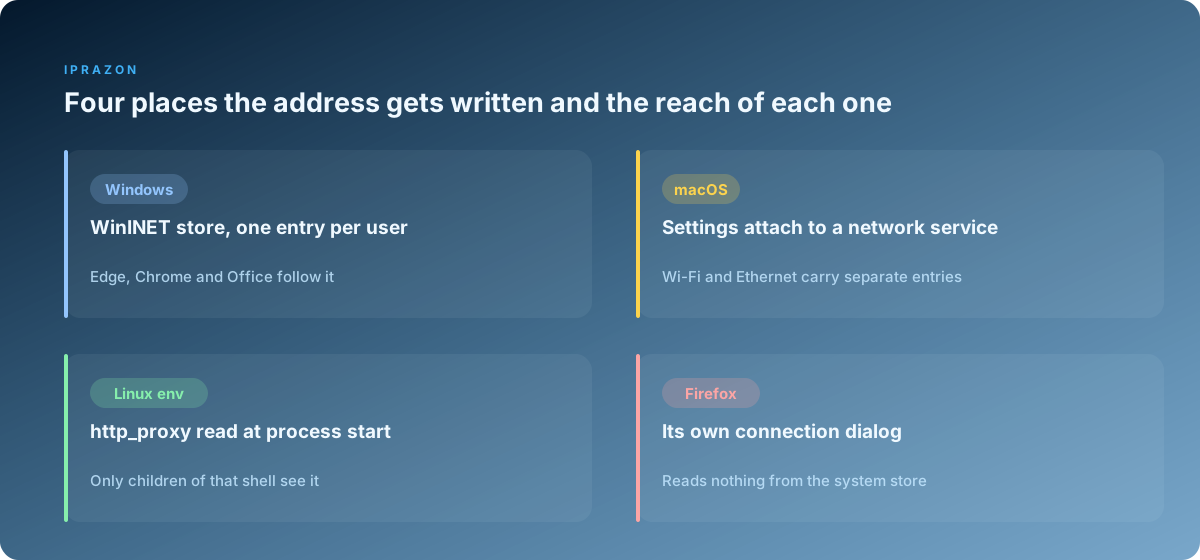
What that dialog writes is a per-user set of registry values under Internet Settings: ProxyEnable flipped to 1, ProxyServer holding the host and port pair, ProxyOverride holding the exception string. This is the WinINET store, and the list of programs that follow it is long: Edge, Chrome, Office, most desktop apps built on the .NET web classes, a lot of installers.
reg query "HKCU\Software\Microsoft\Windows\CurrentVersion\Internet Settings" /v ProxyServer
reg query "HKCU\Software\Microsoft\Windows\CurrentVersion\Internet Settings" /v ProxyOverride
  # the same three values the dialog edits, readable without opening Settings
The second store lives beside it and belongs to WinHTTP. Services that run under the system account read from there: Windows Update, several management agents, a number of background updaters. The dialog leaves that store untouched, so I write it myself from an elevated prompt.
netsh winhttp set proxy 203.0.113.10:3128 bypass-list="*.local;<local>"
netsh winhttp show proxy
netsh winhttp reset proxy          # returns services to a direct path
The third layer on Windows is the set of environment variables, and command line tools live there. Git, curl, npm, pip and the Python libraries read HTTP_PROXY and HTTPS_PROXY, and they see nothing at all in the registry. I set them once for the user account and reopen the terminal, because a running shell keeps the copy it received at launch.
setx HTTP_PROXY "http://203.0.113.10:3128"
setx HTTPS_PROXY "http://203.0.113.10:3128"
setx NO_PROXY "localhost,127.0.0.1,.internal"
Three stores, three groups of programs. My colleague filled one of them and his scraper belonged to the third group. For desktop work of this kind I take an HTTP endpoint with a plain host and port, because every one of these three fields accepts exactly that shape and nothing has to be translated between them.
One detail about credentials on Windows. The manual dialog carries no login fields, so programs prompt for them separately and some of them prompt at an awkward moment. I bind the machine address in the panel instead and let the port answer without a password, which keeps all three stores holding one short string.
macOS: the entry belongs to the network service, so it travels with the cable
Open System Settings, Network, pick the active service, Details, Proxies. The pane offers separate rows: Web Proxy for HTTP, Secure Web Proxy for HTTPS, SOCKS Proxy, and an automatic configuration row for a PAC file. Each row has its own server field, its own port field, and its own password checkbox.
The part that surprises people sits one level up. The entry attaches to the network service, so Wi-Fi and Ethernet hold separate copies. I configured Wi-Fi on a laptop, docked it the next morning, and the machine went out over the wired service with no entry on it. Ten minutes of confusion for a setting that was working correctly the whole time.
The command line version reaches every service in one pass, which is why I use it on any machine I touch more than once.
networksetup -listallnetworkservices
networksetup -setwebproxy "Wi-Fi" 203.0.113.10 3128
networksetup -setsecurewebproxy "Wi-Fi" 203.0.113.10 3128
networksetup -setsocksfirewallproxy "Wi-Fi" 203.0.113.10 1080
networksetup -setproxybypassdomains "Wi-Fi" "*.local" "169.254/16" "*.internal"
networksetup -getwebproxy "Wi-Fi"
scutil --proxy        # the resolved picture the system hands to applications
Safari, Mail, Chrome, the App Store and everything else built on the Apple networking stack follow this pane. The terminal side of the machine works from environment variables in the same way Linux does, so curl and git need the export lines from the section below. On my macOS machines those exports sit in the shell profile permanently, and the pane covers the graphical half.
The bypass list deserves attention here. Anything typed into it also applies to the SOCKS row, and I once spent half an hour on a staging host that stayed direct because its domain suffix was still listed from an old job.
Linux: environment variables and the exact moment they are read
On a server with no desktop the whole configuration is a set of variables, and the rules around them are simple once you hold them in your head.
export http_proxy="http://203.0.113.10:3128"
export https_proxy="http://203.0.113.10:3128"
export no_proxy="localhost,127.0.0.1,10.0.0.0/8,.internal"
export HTTP_PROXY="http://203.0.113.10:3128"
export HTTPS_PROXY="http://203.0.113.10:3128"
export NO_PROXY="localhost,127.0.0.1,10.0.0.0/8,.internal"
Both cases go in. Curl reads either one, wget wants the lowercase form, several Go binaries look for the uppercase form first, and writing both takes 3 extra lines. For a login shell I put those lines in the user profile. For anything that starts outside a shell I write the pairs into the system environment file, where the syntax drops the export keyword and each line is a plain assignment.
The timing rule is the one that costs the most hours. A process reads its environment at launch and keeps that copy for life. A running daemon knows nothing about a variable you exported 5 minutes ago in a terminal. Every change of this kind ends with a restart of whatever needs to see it.
The second rule involves elevated commands. A sudo call builds a fresh environment and drops most of what the user had, so a command that worked as your user goes direct under sudo. The short form is a flag, and the durable form is a keep list in the sudoers file.
sudo -E apt-get update                     # carries the current environment through
grep -r 'env_keep' /etc/sudoers /etc/sudoers.d/   # what survives without the flag
On a Linux desktop there is a graphical pane as well, and its target is the desktop settings store, one level away from the shell. GNOME keeps the values under its own schema, and applications built on the GLib networking layer read them. Terminal tools ignore that store completely, so a desktop machine of mine carries both: the pane for the graphical half and the profile exports for everything I type.
gsettings set org.gnome.system.proxy mode 'manual'
gsettings set org.gnome.system.proxy.http host '203.0.113.10'
gsettings set org.gnome.system.proxy.http port 3128
gsettings get org.gnome.system.proxy.ignore-hosts
My Linux boxes run long jobs, so the address behind those variables has to hold for the length of a project. I rent server addresses I keep by the month and pin one per machine, which means the profile file gets written once and the crontab entries under it keep working without me.
apt, systemd and the services that keep a config file of their own
This group is where the "why is it still going direct" questions come from, and the answer each time is the same: the program has its own file and reads only that.
Apt is first, since a server usually meets it before anything else. The file goes in the apt config directory and the syntax is its own.
cat >/etc/apt/apt.conf.d/95proxy <<'EOF'
Acquire::http::Proxy "http://203.0.113.10:3128";
Acquire::https::Proxy "http://203.0.113.10:3128";
EOF
apt-get update -o Debug::Acquire::http=true 2>&1 | head -20
Systemd units come second. A unit starts from a minimal environment, so exports from any human shell never reach it. The drop-in file is the place for the value, and the pair of commands after it matters as much as the file.
systemctl edit docker
  # [Service]
  # Environment="HTTP_PROXY=http://203.0.113.10:3128"
  # Environment="HTTPS_PROXY=http://203.0.113.10:3128"
  # Environment="NO_PROXY=localhost,127.0.0.1,.internal"
systemctl daemon-reload
systemctl restart docker
systemctl show docker --property=Environment
Then come the tools every developer machine carries, each with a config of its own.
git config --global http.proxy  http://203.0.113.10:3128
git config --global https.proxy http://203.0.113.10:3128
npm  config set proxy           http://203.0.113.10:3128
npm  config set https-proxy     http://203.0.113.10:3128
printf '[global]\nproxy = http://203.0.113.10:3128\n' > ~/.config/pip/pip.conf
snap set system proxy.http="http://203.0.113.10:3128"
Package traffic is heavy. A single container build pulling a base image and a dependency tree moves a few hundred megabytes, and a machine that rebuilds all day repeats that many times over. That is the reason my server addresses come with traffic that carries no volume counter, so a rebuild loop stays a technical question and never turns into an accounting one.
Chrome and the Chromium family: the system store plus one launch flag
Chrome on Windows and macOS reads the system store. The button in its settings page opens the same operating system dialog described above, and whatever you set there applies to every Chrome window at once.
On Linux, Chrome looks at the desktop settings store and at the environment of the process that launched it. Starting it from a terminal where the exports are live is enough for a quick session.
The per-process form is the launch flag, and it beats the system entry for that window.
google-chrome \
  --proxy-server="http://203.0.113.10:3128" \
  --proxy-bypass-list="localhost;127.0.0.1;*.internal" \
  --user-data-dir="/home/me/profiles/run-a"
A separate user data directory is the piece I always add. It gives that window its own profile, its own cookie store and its own cache, so two windows on two addresses stay independent for the whole session. Without it, a second launch attaches to the already running process and my flag is quietly dropped, which is a mistake I made often enough to write it on a sticky note.
The SOCKS form uses a scheme in the same flag, and Chrome sends the hostname to the proxy for resolution when the scheme is socks5.
google-chrome --proxy-server="socks5://203.0.113.10:1080" \
  --host-resolver-rules="MAP * ~NOTFOUND , EXCLUDE 203.0.113.10" \
  --user-data-dir="/home/me/profiles/run-b"
The resolver rule is worth typing out. It tells Chrome to fail local name lookups for everything except the proxy host itself, which keeps DNS queries off the local resolver while the window is up. I verify the effect with a packet capture on port 53, and a correct setup shows an empty capture.
For recording what actually happened, Chrome writes a full network log through the export page at chrome://net-export. The file it produces lists the proxy chosen for each request, and that answered a dispute for me faster than any address check page.
Firefox: the browser that keeps its own connection dialog
Firefox reads nothing from the system store until you tell it to. The pane sits at the end of the general preferences page, under Network Settings.
Manual proxy configuration gives four rows. HTTP Proxy with its port, the checkbox that mirrors the same pair onto HTTPS, the SOCKS host with its port and a version selector, and the no-proxy list. Two checkboxes below matter more than their size suggests: the one that sends DNS through a SOCKS v5 proxy, and the one that keeps localhost out of the exception list.
Everything in that pane maps to preferences you can set directly, which is how I configure a fresh profile without touching the mouse.
// user.js in the profile directory, applied at the next start
user_pref("network.proxy.type", 1);            // 1 manual, 2 PAC, 5 follow the system
user_pref("network.proxy.http", "203.0.113.10");
user_pref("network.proxy.http_port", 3128);
user_pref("network.proxy.ssl", "203.0.113.10");
user_pref("network.proxy.ssl_port", 3128);
user_pref("network.proxy.socks", "203.0.113.10");
user_pref("network.proxy.socks_port", 1080);
user_pref("network.proxy.socks_version", 5);
user_pref("network.proxy.socks_remote_dns", true);
user_pref("network.proxy.no_proxies_on", "localhost, 127.0.0.1, .internal");
The remote DNS line is the one I check first on any Firefox profile handed to me. With it on, the browser passes hostnames to the SOCKS port and the name lookup happens at the far end. With it off, the browser resolves locally and the request goes out through the proxy afterwards, which shows up immediately in a capture on port 53.
For the SOCKS rows I use a SOCKS5 endpoint that resolves names remotely, since the browser hands the hostname over and the far side answers with the address it sees. That pairing keeps the browser and the terminal on identical behaviour, and it makes the capture on port 53 stay empty in both.
A fleet of machines takes the policy file, which lives beside the Firefox binary and applies before the first profile exists. The proxy block inside it accepts the same values in JSON form, and Firefox shows a lock icon on the pane so a curious user leaves the entry alone.
Setting the type preference to 5 is the opposite move: Firefox then follows the operating system entry and the pane goes quiet. I use that value on shared workstations where one system entry has to cover every browser on the machine.
The terminal: curl, wget and control at the level of one command
Environment variables cover everything a shell starts. Sometimes I want one request to go through an address while the rest of the session stays direct, and every terminal tool has a flag for that.
curl -x http://203.0.113.10:3128 https://ifconfig.me/ip
curl --proxy-user user:pass -x http://203.0.113.10:3128 https://ifconfig.me/ip
curl --socks5-hostname 203.0.113.10:1080 https://ifconfig.me/ip   # name resolved at the proxy
curl --socks5 203.0.113.10:1080 https://ifconfig.me/ip            # name resolved locally
curl --noproxy '*' https://ifconfig.me/ip                         # direct, ignoring the variables
wget -e use_proxy=yes -e http_proxy=203.0.113.10:3128 https://example.org/file.tgz
git -c http.proxy=http://203.0.113.10:3128 clone https://example.org/repo.git
ssh -o ProxyCommand='nc -X 5 -x 203.0.113.10:1080 %h %p' user@example.org
The two SOCKS flags in the middle differ by one word and by the place the DNS query happens. I keep the hostname form as my default and reach for the other one only when I need a local resolver in the picture on purpose.
A permanent default for curl goes in its own config file, one directive per line, and I use it on machines where nearly every request should take the same path.
printf 'proxy = http://203.0.113.10:3128\nnoproxy = localhost,127.0.0.1,.internal\n' > ~/.curlrc
curl -v https://ifconfig.me/ip 2>&1 | grep -i 'proxy\|Connected to'
That grep line is my everyday check. The verbose output names the host curl actually connected to, and a correct run shows the proxy address there with the target host appearing later inside the request.
Why a part of the programs pays no attention to the system entry
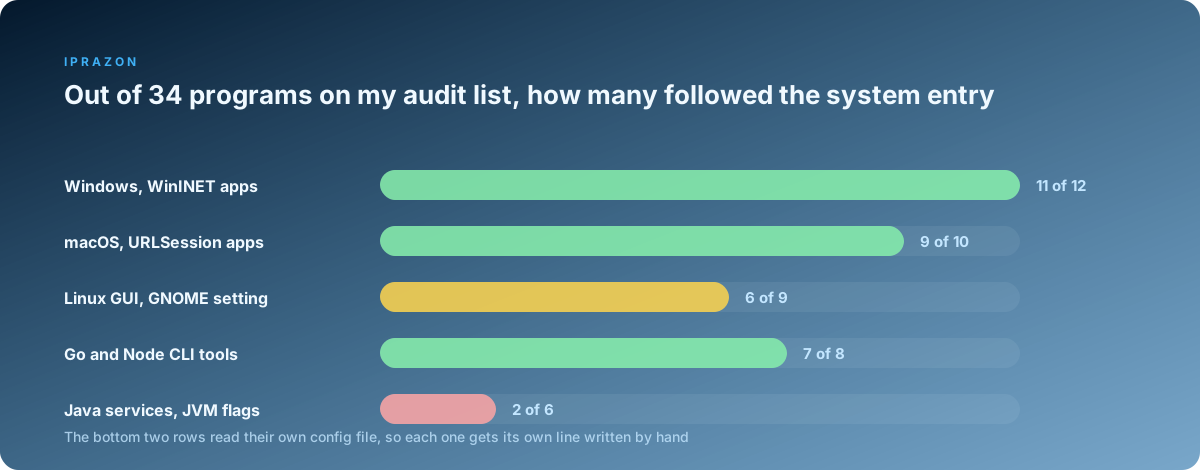
There is no proxy switch at the kernel level. The system carries a stored value and a set of libraries that agree to read it, so following the system entry is a decision each runtime makes on its own. Once you hold that idea, the behaviour stops looking random.
Java services take command line properties. The environment variables mean nothing to the JVM, and the values go in as flags on the process or through the tool options variable.
java -Dhttp.proxyHost=203.0.113.10 -Dhttp.proxyPort=3128 \
     -Dhttps.proxyHost=203.0.113.10 -Dhttps.proxyPort=3128 \
     -Dhttp.nonProxyHosts='localhost|127.0.0.1|*.internal' -jar service.jar
Go binaries read the environment through the standard transport, so most of them follow along. A program that builds a custom transport in code takes the proxy from its own config file, and the flag or the field in that file is the only place worth editing.
Node behaves the same way: the built in fetch reads no variables by default, and the agent is set in code or through one of the loader packages. Python splits down the middle, where the requests library reads the variables and a direct urllib3 pool manager takes the address as an argument.
Sandboxed packages add one more layer. A snap or a flatpak app runs with an environment prepared by the sandbox, so exports from the user profile stop at the boundary and each system has its own command for passing them in.
Then there is the group that keeps a dialog of its own, and Firefox is only the most visible member. Torrent clients, several chat applications and most download managers hold an address field in their settings window, and that field wins over everything the system says.
I ran an audit across 34 programs on my own machines to see how the groups split in practice. The Windows and macOS system stores covered almost everything with a graphical window. Command line tools split by runtime. Package managers and units under systemd came in last, each wanting a line written by hand.
This is also why I keep the exit point itself simple. Private addresses used by one operator mean the same host and port string works in the Windows registry, in a plist on macOS, in a systemd drop-in and in a Firefox preference, with no per-application translation and no session tokens to refresh in 6 different files.
Verification: proving that the traffic went out through the address
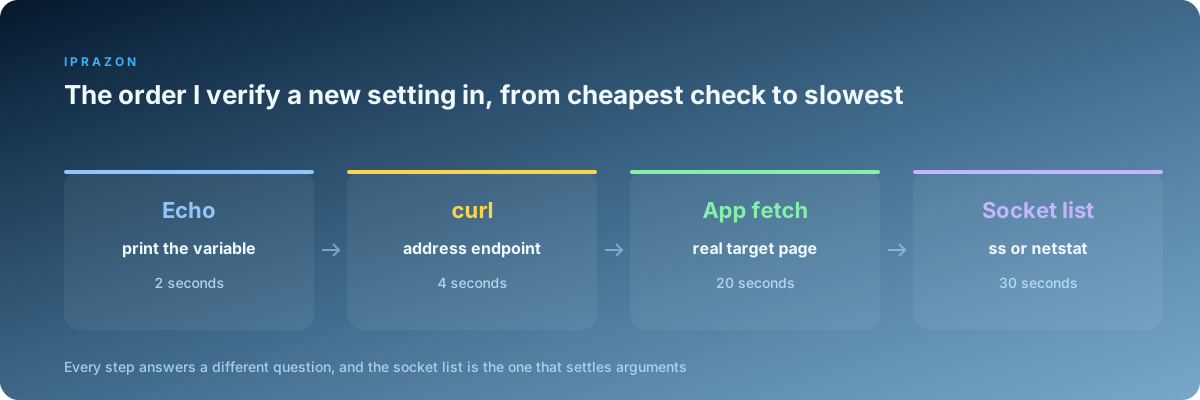
An address check page in a browser answers for that browser and for nothing else. The checks below answer for the specific program you care about, and they run in seconds.
The first probe is the variable itself, printed from the same shell the program will start in. The second is a request through curl to an endpoint that echoes the caller address. The third is the program's own fetch, sent to a target you control so the access log shows the source. The fourth is the socket list, which shows the real remote endpoint of every open connection, and it settles arguments that the first three leave open.
env | grep -i proxy                                  # what this shell will hand to a child
curl -s https://ifconfig.me/ip                       # through the variables
curl -s --noproxy '*' https://ifconfig.me/ip         # direct, for comparison
ss -tnp state established '( dport = :3128 )'        # who holds a socket to the proxy port
sudo tcpdump -ni any port 3128 or port 53            # traffic to the proxy and any name lookups
On Windows the socket list has its own commands, and the second one turns a process id into a name.
Get-NetTCPConnection -RemotePort 3128 | Select-Object LocalPort,RemoteAddress,State,OwningProcess
Get-Process -Id (Get-NetTCPConnection -RemotePort 3128).OwningProcess | Select-Object Id,ProcessName
The capture on port 53 is the piece people skip. A browser can be sending every page through a SOCKS port while resolving names locally, and the address check page reports the proxy address happily in that state. An empty capture on port 53 during a page load is the proof that the name lookup went to the far end as well.
The last check happens on the other side. My panel lists active sessions per address, so I load the page from the machine under test and watch the session appear against the right port at the right second. Server side confirmation costs nothing and removes any doubt left by the local commands.
| Check | Command or place | Answers | Time it takes |
|---|---|---|---|
| Variable present | env or the Windows setx list | whether a child process will see it | 2 seconds |
| Address echo | curl to an ip echo endpoint | whether curl itself uses the address | 4 seconds |
| Direct comparison | the same curl with noproxy | what the machine looks like unproxied | 4 seconds |
| Program fetch | the app pulling a page you own | what your access log records as source | 20 seconds |
| Socket list | ss on Linux, Get-NetTCPConnection on Windows | which process holds the proxy socket | 30 seconds |
| Name lookups | tcpdump on port 53 | whether DNS goes local or remote | 3 minutes |
| Server side | session list in the panel | confirmation away from the client | 1 minute |
For the machines that carry production jobs I use datacenter addresses on owned hardware, and the session list on that side is what I trust at the end of any configuration change. The client can be wrong about itself in half a dozen ways, and the far end sees the connection as it arrived.
Where each setting lives, what it touches, how to check it
Here is the whole tour in one place. I keep this table open when I set up a machine, and I fill in the rows that machine needs before I write anything at all.
| Where the value is written | Exact place | What it affects | How I check it |
|---|---|---|---|
| Windows dialog | Settings, Network, Proxy, Manual setup | Edge, Chrome, Office, .NET desktop apps | reg query on Internet Settings |
| Windows services store | netsh winhttp set proxy | Update, agents, anything under the system account | netsh winhttp show proxy |
| Windows variables | setx HTTP_PROXY and HTTPS_PROXY | git, curl, npm, pip, python scripts | new terminal, then echo the variable |
| macOS pane | Network, service, Details, Proxies | Safari, Mail, Chrome, App Store | scutil with the proxy argument |
| macOS command line | networksetup with the service name | the same set, applied to every service | networksetup getwebproxy |
| Linux shell | http_proxy and friends in the profile | everything started from that shell | env filtered by the word proxy |
| Linux system file | the environment file, plain assignments | login sessions and some launchers | a fresh login, then env |
| Linux desktop | the GNOME proxy schema | GLib based graphical applications | gsettings get on the schema |
| Package manager | apt config file, npm and pip settings | package downloads and index updates | update run with debug output |
| Service units | systemd drop-in with Environment lines | daemons after reload and restart | systemctl show property Environment |
| Chrome | system store or a launch flag | that browser window and its profile | net export log, socket list |
| Firefox | Network Settings pane, user.js, policy file | that Firefox profile alone | preference page, capture on port 53 |
| Per command | curl and wget flags, git config entries | one request or one repository | verbose output naming the connection |
| Java service | proxyHost and proxyPort properties | that JVM process | socket list against the port |
Two rows carry the pattern the whole article turns on. Programs with a graphical window mostly follow the operating system, while anything with a config file of its own gets that file edited by hand. Sorting a machine by that split takes a couple of minutes and saves the hour of guessing my colleague spent.
The habit I would pass on is narrow and cheap. After every change, run the socket list while the program is working, and look at which process holds a connection to the proxy port. That single command covers browsers, package managers, daemons and scripts equally, and it answers with the process name so there is nothing left to interpret.
For the machines I set up most often I keep a short file per system with the exact lines, addresses filled in, and I paste them in order. Windows takes three commands, macOS takes two, a Linux server takes the profile block plus one drop-in per service. Once those are in place, the HTTP addresses I keep for system-wide entries stay in every store until a project ends, and the only thing that changes between projects is the host in a handful of files.
Two neighbouring pieces go deeper where this one stayed wide: picking the protocol by the job in front of you covers the choice between HTTP, HTTPS and SOCKS5 with the failure modes of each, and how to test a proxy before you rely on takes apart timeouts, keepalive settings and the pauses that look like a broken address.